Home Overview
AhnLab V3 Lite provides the user-oriented interfaces with quick accessibility. When you start AhnLab V3, the main window is shown. It provides direct access to the all AhnLab V3 features, online Help, and integrated settings.
The AhnLab V3 main window
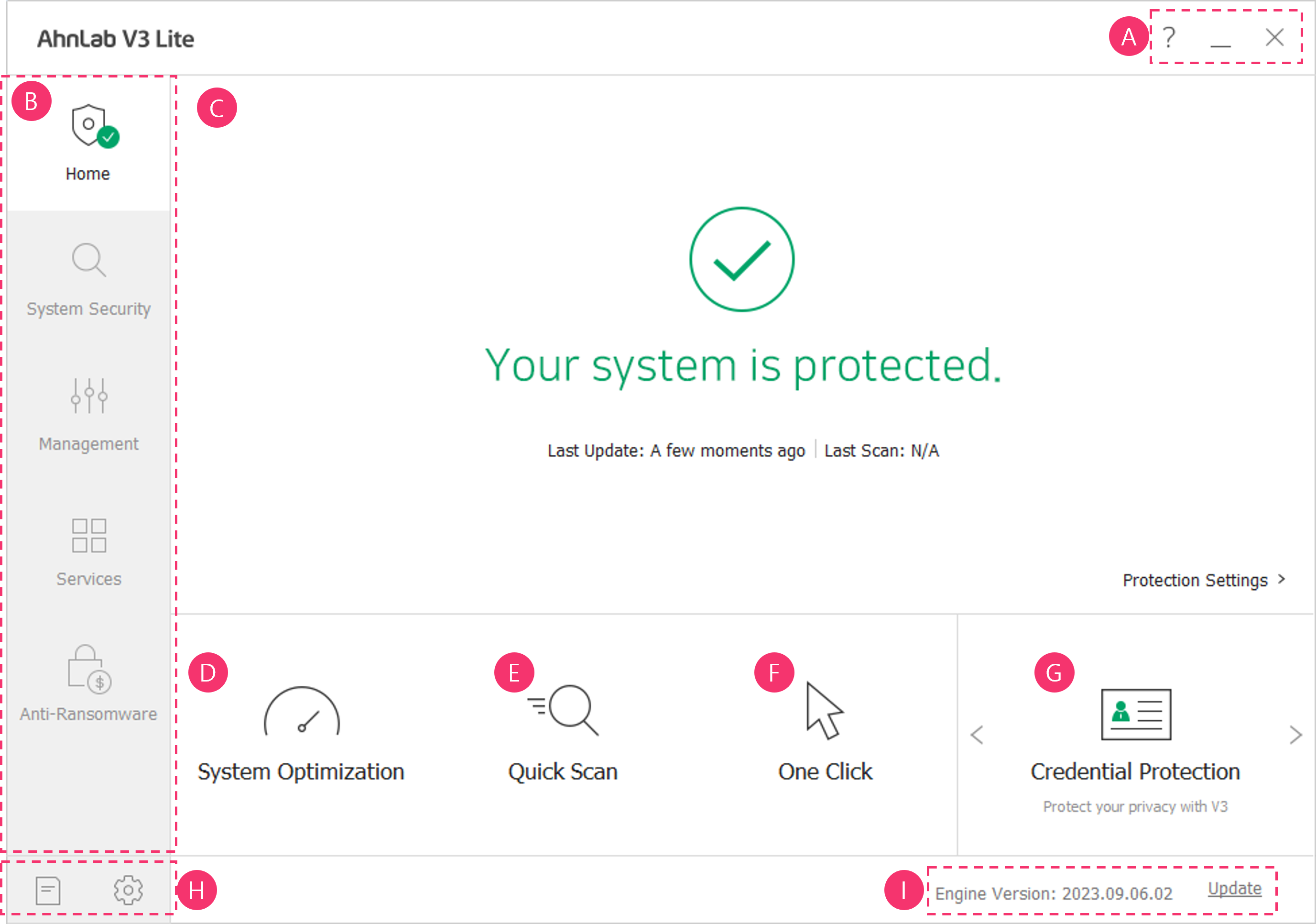
Section A
 : Shows online guidelines, and provides other technical supports.
 : Minimizes the window.
 : Closes the window.
Section B
- Home: Goes to the main screen and indicates the security status of your system.
- System Security: Moves to the One Click, Full Scan, Smart Scan and Custom Scan screens.
- Management: Moves to the PC Optimization, Program Management, ActiveX Management, Toolbar Management and My PC Care screens.
- Services: Moves to the PC Doctor, Parental Control, Credential Protection and V3 Zip 2.0 screens.
- Anti-Ransomware: Moves to the Ransomware Scan screen.
- Network Protection: Moves to the Suspicious websites and Network Monitoring screen.
Section C
Displays the security status of the system based on configuration of Real-time Scan, Web Protection, and Cloud Analysis.
- Your Computer is protected: When all features—real-time scan, web security, and cloud automatic analysis—are set to On, the security status is displayed in green, indicating a safe state.
- Your computer needs attention: If real-time scan is On, but either web security or cloud automatic analysis is set to Off, the security status is displayed in yellow, indicating a potential risk.
- Your computer security is at risk: If real-time scan is set to Off, the security status is displayed in orange, indicating a risk state.
- Fix Now: Click Fix Now to scan the system and maintain the security status as protected.
- Last Update: Displays the date of last update.
- Last Scan: Displays the date of last scan
- Protection Settings: Moves to Protection Settings where you can configure the use of V3's Real-time Scan, Web Protection, and Cloud Analysis.
Section D
Run System Optimization. Free up your hard disk space by deleting unnecessary data and optimize computer performance.
Section E
Run Quick Scan. Scan important folders such as process, boot, and system.
Section F
Run One Click actions. When you click One Click, Quick scan and PC Optimization will run at once.
Section G
Click an arrow icon (< , >) to go to PC Doctor, Parental Control, and Credential Protection provided by V3.
Section H
- Security Log: Shows all records including logs, files in Quarantine, and data gathered by Active Defense.
- Settings: Shows all the setting menus.
Section I
Check current engine version. When you click update, the product is updated to the latest version in order to maintain protection.