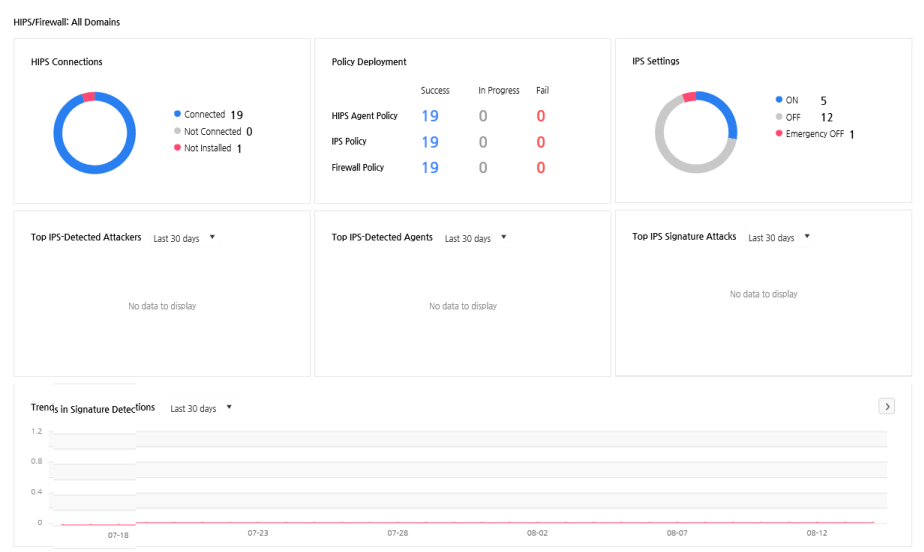
You can check policy application status of HIPS agent, IPS, and firewall for all domains. Furthermore, you can also check connection status by product, settings status, and various detection trend & status of blocks.
Displays HIPS Connections, Policy Overview, IPS Settings, Top IPS-Detected Attackers, Top IPS-Detected Agents, Top IPS Signature Attacks, Trends in Signature Detections, Firewall Settings, Top Firewall-Blocked IPs, Top Firewall-Blocked Agents, and Trends in Firewall Blocks for all domains.
Policy Overview displays the number of agents by application status (Applied/In Progress/Not Applied) of HIPS agent policy, IPS policy, firewall policy, and V3 policy sent by the server.
Displays connection status of HIPS and agent. Displays Connected/Not Connected/Not Installed depending on the connection status. If the HIPS and the agent are connected, Connected will be displayed. If not, Not Connected will be displayed. If the agent is not installed, Not Installed will be displayed. To check the details of the agent for each connection status, click the number of connection status and go to Management > Agent Status > HIPS/Firewall Info.
Displays application status of HIPS agent, HIPS policy, and firewall policy sent by the server. Depending on the application status, the policy will be displayed as Applied/In Progress/Not Applied. If the policy is applied, Applied will be displayed. If the application is in progress, In Progress will be displayed. If the policy is not applied, Not Applied will be displayed.
Displays the IPS settings status of an agent. ON/OFF/Emergency OFF will be displayed depending on the settings. If the agent is using IPS feature, ON will be displayed. If not, OFF will be displayed. If the IPS is in use but is temporarily disabled due to a certain issue, Emergency OFF will be displayed. To check the details of the agent for each settings status, click the number of settings status and go to Management > Agent Status > HIPS/Firewall Info.
Displays the ranking of attacker IPs based on IPS detections. The IP addresses with the highest rank detections will be located on the top. Click IP address to move to Management > Agent > IPS Event and check detailed info.
Displays the ranking of agents by the number of IPS detections. The agent with highest number of detections are located at the top, and the agent's IP address will also be displayed. Click IP address of the agent to move to Management > Agent > IPS Event and check the detailed info.
Displays the ranking of signature attacks based on IPS detections. Signatures attacks with the highest number of detections will be located on the top. Click the attack to move to Management > Agent > IPS Event and check the detailed info.
Displays the number of signature-based IPS detections by time. Click
 to move to Log > Agent > IPS Event
and check detailed info.
to move to Log > Agent > IPS Event
and check detailed info.
Displays the firewall settings status of an agent. ON/OFF/Emergency OFF will be displayed depending on the settings. If the agent is using the firewall feature, ON will be displayed. If not, OFF will be displayed. If the firewall is in use but is temporarily disabled due to a certain issue, Emergency OFF will be displayed. To check the details of the agent for each settings status, click the number of settings status and go to Management > Agent Status > HIPS/Firewall Info.
Displays the ranking of IPs by the number of firewall blocks. The IP addresses with the highest number of detections will be located on the top. Click IP address to move to Management > Agent > Firewall Event and check the detailed info.
Displays the ranking of agents by the number of firewall blocks. The agent with highest number of detections are located at the top, and the agent's IP address will also be displayed. Click IP address of the agent to move to Management > Agent > Firewall Event and check the detailed info.
Displays the number of firewall blocks by time. Click to move to Log
> Agent > Firewall Event and check the detailed info.