 Note
NoteYou can create the query report template from the report template. The created template is used for creating the user-defined report.
The following items are features available in Report Template.
You can view the created template list from the report template list. You can check the report template list in the following way.
You can add the report template list in the following way.
Note
The query is different for each graph type.
Note
Example for Query) Enter the following query to import
agent user information. Space is not allowed in 'Agent_ID'.
SELECT node_id AS "Agent_ID", ip AS "IP", ip_connected
AS "Connected_IP", computer_name AS "Computer_Name",
platform_id AS "Platform" FROM tb_node
The example of query for graph (pie, bar or line chart) and table is as below:
1. Pie Chart
The query to create a pie chart to get the number of agents per platform is as follows:
SELECT p.name, COUNT(1) AS value
FROM tb_node AS n
JOIN tb_platform AS p ON n.platform_id = p.platform_id
GROUP BY p.name
2. Bar Chart
The query to create a bar chart to get the number of malware for the past 7 days is as below:
Note
This is only available with a licensed V3.
Query
SELECT
TO_CHAR(TO_DATE(i.reg_date,$$yyyymmdd$$), $$YYYY-MM-DD$$) AS name
, COALESCE(t.detect_count, 0) AS value
FROM (
SELECT TO_CHAR(date_trunc($$DAY$$, CURRENT_TIMESTAMP) - (t.i || $$DAY$$)::interval, $$YYYYMMDD$$) AS reg_date
FROM generate_series(0, 6) AS t(i)
) AS i
LEFT JOIN (
SELECT t.reg_date, SUM(t.malware_clean_count + t.malware_clean_fail_count) AS detect_count
FROM tb_timeline_v3 AS t
WHERE t.node_id = ANY(SELECT node_id FROM tb_node WHERE is_removed = FALSE)
AND t.reg_date BETWEEN TO_CHAR(CURRENT_TIMESTAMP - $$6 DAY$$::interval, $$YYYYMMDD$$) AND TO_CHAR(CURRENT_TIMESTAMP, $$YYYYMMDD$$)
GROUP BY t.reg_date
) AS t ON i.reg_date = t.reg_date
ORDER BY 1
3. Polygon Graph
The query to create a polygon graph to get the number of HIPS detections for the past 7 days is as below:
Note
This is only available with a licensed HIPS.
Query
SELECT
TO_CHAR(TO_DATE(i.reg_date,$$yyyymmdd$$), $$YYYY-MM-DD$$) AS name
, COALESCE(t.count, 0) AS value
FROM (
SELECT TO_CHAR(DATE_TRUNC($$DAY$$, CURRENT_TIMESTAMP) - (t.i || $$DAY$$)::INTERVAL, 'YYYYMMDD') AS reg_date
FROM generate_series(0,6) AS t(i)
) AS i
LEFT JOIN (
SELECT hips_daily_timeline.reg_date , COALESCE(SUM(hips_detect_count),0) AS count
FROM tb_hips_daily_timeline hips_daily_timeline
INNER JOIN tb_node node ON node.node_id = hips_daily_timeline.node_id AND node.is_removed IS FALSE
WHERE hips_daily_timeline.reg_date BETWEEN TO_CHAR(CURRENT_TIMESTAMP - $$6 DAY$$::INTERVAL, $$YYYYMMDD$$)
AND TO_CHAR(CURRENT_TIMESTAMP,$$YYYYMMDD$$)
GROUP BY hips_daily_timeline.reg_date
) AS t ON t.reg_date = i.reg_date
ORDER BY i.reg_date ASC
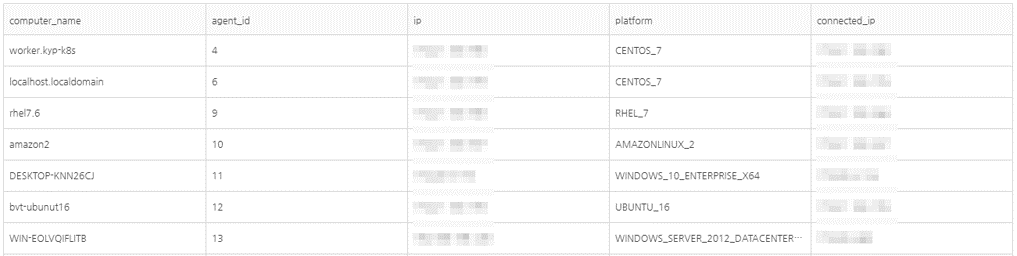
3. Table
The query to create a table to get the agent information (user IP, connected IP, computer name, platform ID) is as below:
Note
ID cannot contain space.
Query
SELECT node_id AS Agent_ID, ip AS IP, ip_connected AS Connected_IP, computer_name AS Computer_Name, platform_id AS Platform FROM tb_node
Enter type, name, and creation date in the search keyword input field to view the report template matching the search conditions.
You can modify the report template in the following way.
You can delete the report template in the following way.
 ) on the
left side of the report template to delete.
) on the
left side of the report template to delete.