Viewing Agent Details
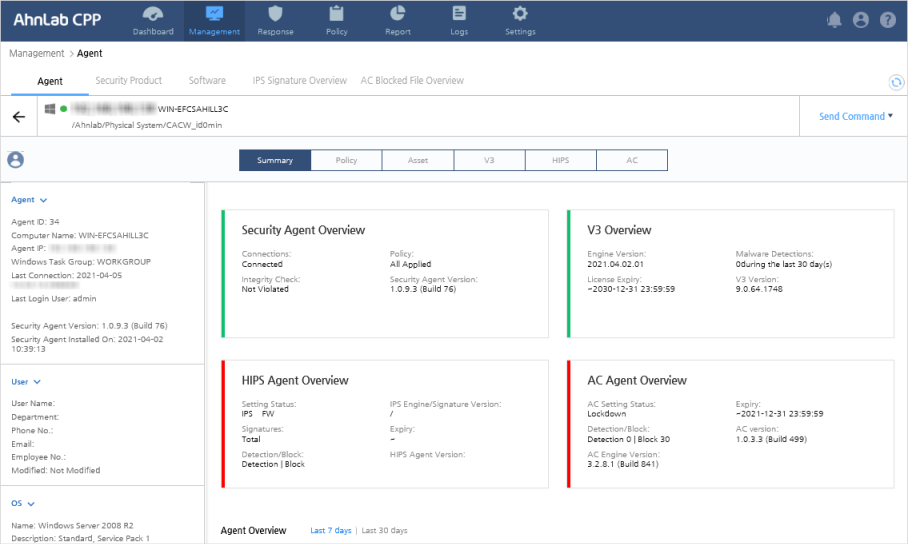
To view details about the agent, click the IP address
or computer name from the Management
> Agent page.
Send Remote Commands
You can select to send commands to the selected agent.
- Go to Management
> Agent. On the left panel, make sure that you have selected
the correct agent by checking the Agent,
User, Cloud
system and OS information.
- Simply click the Send
Command button above the information. Or, right-click on the
agent to see available command choices.
- Select the type of command you want to send
to the agent.
- For more information about each command, please
refer to the Chapter on Remote Commands.
View Agent Details
On the main panel of this page, you can select to view different information
about the agent.
To change the panel, click the Down
Arrow icon and select to view the necessary information.
- Summary: Shows the overall summary of information
about the security agent overview,V3 Overview, HIPS Agent Overview,
AC Agent Overview, and the general agent overview.
- Policy: Shows the overview of deployed group
policies and indicates whether a separate individual policy is applied
to the agent. You can also change the policy from this page.
- Asset: Shows the overview of all software assets
installed on the agent, including the history of installation and
unistallation. You can also export the list of current installations
as a file.
- V3: Shows the overview of the anti-malware
(V3) installed on the agent, including information on any malware
detected in the last 30 days.
- HIPS: Shows the overview of the HIPS feature,
including the applied signatures. To change the signature, go to Policy > IPS Policy.
- AC: Shows the overview of the AC feature, including
the list of blocked applications.