Adobe Flash Player update settings
Check whether the Adobe Flash Player installed on the
user's PC has the latest update applied.
The main details that can be found in Adobe
Flash Player update settings are as
follows.
- Method of check the update status of Adobe Flash
Player
- Checking the results of the Adobe Flash Player
update status check
- Action on Vulnerability detection after checking
the update status of Adobe Flash Player
Scan Method
If you run the PC security scan, you can check whether the latest updates
for Adobe Flash Player are installed. To do so, complete the following
steps:
- On the taskbar, right-click on the agent icon
(
 )
and select AhnLab ESA > AhnLab ESA.
)
and select AhnLab ESA > AhnLab ESA.
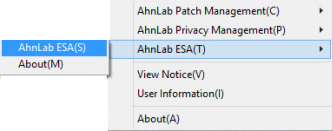
- In the <AhnLab ESA> window, select the
Vulnerability Scan tab.
- In the top-right corner of the screen, click Run Scan.
- The Vulnerability
Scan is started.
Check Scan Results
To check the scan results, complete the following steps:
- On the taskbar, right-click on the agent icon
()
and select AhnLab ESA > AhnLab ESA.
- In the <AhnLab ESA> window, select the
Vulnerability Scan tab.
- In Advanced Check > Other Vulnerabilities under
Detailed Check
List, select Adobe Flash Player
update settings.
- Check the latest security scan results in Scanned Item Details.
- Secure: Adobe Flash Player is the latest version,
so the security status is diagnosed as Secure. If linked with APM,
the result will always be marked as Secure, even if Adobe Flash Player
is not installed or if the patches are installed but not applied.
- Vulnerable: Adobe Flash Player is not the latest
version, so the security status is diagnosed as Vulnerable. Click
Install Update, Take
action on IE/ActiveX, or Take action
on Chrome/PPAPIto apply the latest update. For information
on the application, see Recommended Action.
- Unscannable: The application of the latest
security patches on Adobe Flash Player cannot be checked, so the security
status is diagnosed as Unscannable. When linked with an APM, it is
displayed as Unscannable if the APM was never operated or if there
is a problem with the server connection.
If the latest patch for Adobe Flash Player is diagnosed as Vulnerable,
you can take action depending on the connection to the ESA and APM.
When linked with APM
To take action when linked with APM, complete the following steps:
- In Scanned
Item Details, click Install Update.
- The <AhnLab Patch Management> window appears.
Check the Adobe Flash Player update to install and click Update
Now.
- Click on the Applied Patch
List.
- The <Applied Patch List> window appears.
Check whether necessary Adobe Flash Player update exists on the applied
patch list.
When not linked with APM
To take action when linked with APM, complete the following steps:
- In Scanned
Item Details, click Take action on IE/ActiveX
or Take action on Chrome/PPAPI depending
on the PC environment.
- The Adobe homepage is opened. Download and install
the latest update file of Adobe Flash Player.