Report Template
You can create the query report template from the report
template. The created template is used for creating the user-defined report.
The following items are features available in Report
Template.
- Add/Modify/Delete
a Query Report Template
- Add a graph (pie,
line, bar graphic) to the report template
Report Template List
You can view the created template list from the report template list.
You can check the report template list in the following way.
- Select Report on
the top of the page.
- Select the Report >
Report Template from the menu.
- You can check the created report template.
- Add: You
can add the report template to the query report.
- Delete: Deletes the selected report template
from the list.
- Type: Type of report.
- Name: Name of the query report. Enter the name
when saving the report template.
- File Created: Shows the date when the report
template was created.
You can add the report template list in the following way.
- Select Report on the top of the page.
- Select Report Template.
- Click Add > Query Report.
- Select the report creation option from Report in <Add a Query Report Template>.
- Create a new report: Create a new report for
creating a query report.
- Import a report: Imports the already created
templates. Click Select a template...,
select the template, and then click Import
to use the existing template.
- Create the graphic to add to the report in Graph Settings. When adding a graph to the
report, click Add. Graphs can be added
up to 3.
- Type: The available graph types are pie, bar,
and line charts.
- Title: Enter the title for the chart.
- Graph Query: Enter the query for the graph.
 Note
Note
The query is different for each graph type.
- Enter the query for creating a report in Table.
Note
Example for Query) Enter the following query to import
agent user information. Space is not allowed in 'Agent_ID'.
SELECT node_id AS "Agent_ID", ip AS "IP", ip_connected
AS "Connected_IP", computer_name AS "Computer_Name",
platform_id AS "Platform" FROM tb_node
- Enter the report name and the report information.
- Report Name: The name of the scheduled integrated
report. The administrator can set the report when creating a report
creation schedule.
- Description: Enter the description for the
report to create.
- Click Preview to
preview the created the report.
- Click OK to close
the window.
The example of query for graph
(pie, bar or line chart) and table is as below:
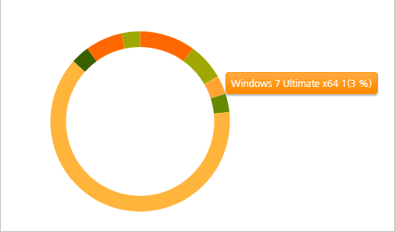
1. Pie Chart
The query to create a pie chart
to get the number of agents per platform
is as follows:
SELECT p.name, COUNT(1)
AS value
FROM tb_node AS n
JOIN tb_platform AS
p ON n.platform_id = p.platform_id
GROUP BY p.name
Pie Chart Result
2. Bar Chart
The query to create a bar chart
to get the number of malware for the past 7 days
is as below:
Note
This is only available with a licensed V3.
Query
SELECT
TO_CHAR(TO_DATE(i.reg_date,'yyyymmdd'),
'YYYY-MM-DD') AS name
, COALESCE(t.detect_count,
0) AS value
FROM (
SELECT
TO_CHAR(date_trunc('DAY', CURRENT_TIMESTAMP) - (t.i || 'DAY')::interval,
'YYYYMMDD') AS reg_date
FROM generate_series(0,
6) AS t(i)
) AS i
LEFT JOIN (
SELECT
t.reg_date, SUM(t.malware_clean_count + t.malware_clean_fail_count) AS
detect_count
FROM tb_timeline_v3
AS t
WHERE t.node_id
= ANY(SELECT node_id FROM tb_node WHERE is_removed = FALSE)
AND
t.reg_date BETWEEN TO_CHAR(CURRENT_TIMESTAMP - '6 DAY'::interval, 'YYYYMMDD')
AND TO_CHAR(CURRENT_TIMESTAMP, 'YYYYMMDD')
GROUP BY
t.reg_date
) AS t ON i.reg_date
= t.reg_date
ORDER BY 1
Search Report Template
Enter type, name, and creation date
in the search keyword input field to view the report template matching
the search conditions.
Modify Report Template
You can modify the report template
in the following way.
- Select Report on
the top of the page.
- Select the Report >
Report Template tab.
- You can check the created report template list.
Click the template to modify.
- Modify the required information in <Add Query
Report Template>. Using Preview, you can check the report.
- Click OK to close
the window.
Delete Report
You can delete the report template in the following way.
- Select Report on the top of the page.
- Select Report Template.
- When the created report templates list appears,
click Delete(
 ) on
the left side of the report template to delete.
) on
the left side of the report template to delete.