Note
NoteOnce CentOS 7 is installed, you can use the Docker image to install the CPP server.
Note
Ansible is a tool that enables installation and deletion of multiple servers at a time. In other words, it can install 100 servers at the same time. By default, Ansible runs the same task in 5 hosts in parallel, but the file transfer and command execution speed is slow.
To use Ansible to install CPP server on multiple servers, complete the following steps.
File |
Description |
ansible |
File related to Ansible |
cpp-hosts |
File containing host machine information |
cpp_external_installer-1.0.2.1-67.x86_64.rpm |
File containing additional OS package, Docker binary and open source package (* The install example assumes that CentOS Linux Minimal version is installed.) |
cpp_installer-1.0.2.1-67.x86_64.rpm |
File for CPP server installation containing docker image, container and other scripts |
| [cppserver]
172.21.30.178 ansible_user=root ansible_ssh_pass="qwe123" 172.21.30.179 ansible_user=root ansible_ssh_pass="qwe123" 172.21.30.180 ansible_user=root ansible_ssh_pass="qwe123" [all:vars] ansible_port=22 // Modify if ssh port number is not 22. cpp_space=/opt // Modify when permanent data storage path is different. (* Usually not modified.) tmp_dir=/opt/tmp // Do not modify. os_type=centos // Modify if the OS is Ubuntu and not CentOS. (* Usually not modified.) cli_auto=no // Change to no if cli is not set automatically. # When installing, enter cli_auto=no, and manually set cli after installation by connecting to all the servers. |
 Warning
If installation/update/deletion is completed using Ansible, the account information in plaintext in cpp-hosts must be deleted.
Process |
Description |
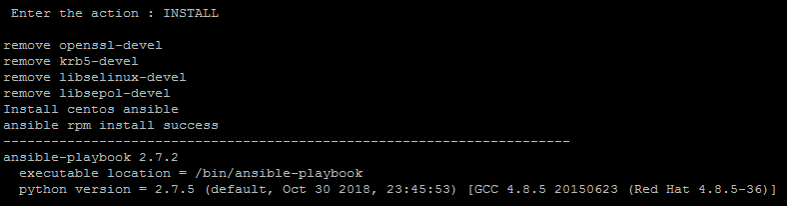
INSTALL |
Install the CPP server. * The installation will be canceled if it is already installed on any one of the servers. Use the REMOVE menu to remove the CPP server and INSTALL again. (Installation is canceled when CPP rpm version is already installed, or /opt/space path exists.) |
UPDATE |
Update the CPP server. |
UPDATE_HOST |
Update the package version and kernel settings of the host OS only. (Note that UPDATE_HOST does not work for updates via file uploads.) |
REMOVE |
Remove the CPP server. (All CPP rpm and CPP docker versions, including CPP 1.0.1 will be removed) |
Log in to the server to manually change the time Change the current date date -s 2019-04-08 Change the current time date -s 15:25:46 # After changing the time, you must record it on the system as well. /usr/sbin/hwclock -wu |
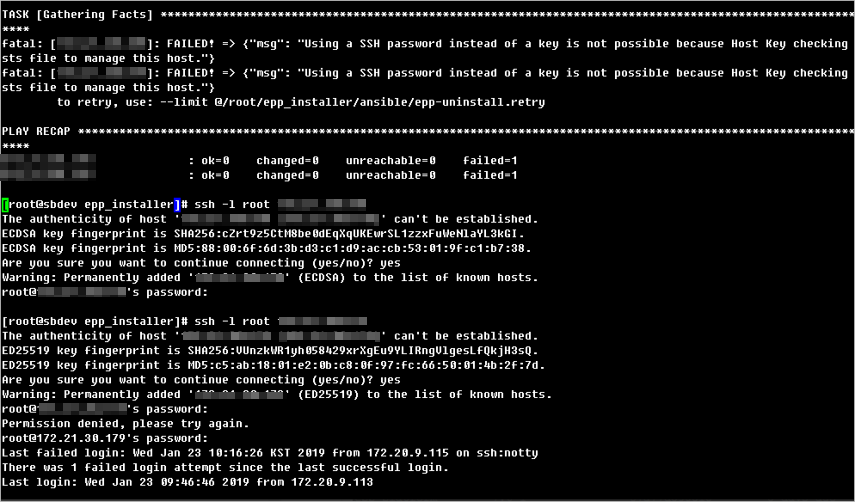
1) The following error is shown when the ssh key value does not exist
2) The following log message is generated when the ssh key value does not exist.
|
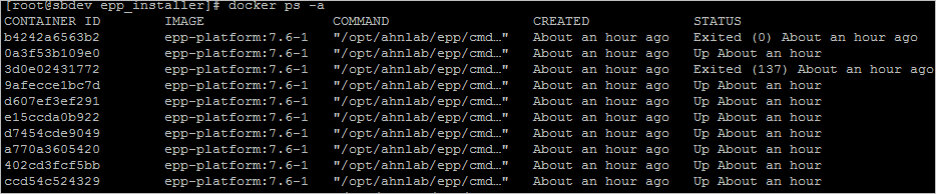
1) Log in to the server and check the installation with docker images command. The cpp-platform image must be loaded.
2) Check that the following containers exists using the docker ps -a command.
3) When Ansible is completed, check that it is terminated with failed=0.
4) Check that mgr wats
|
Log |
Host Device |
Container |
install log |
/opt/tmp/epp_install |
- |
update log |
/opt/ahnfs/tmp/epp_install |
/tmp/epp_install |
management log |
/opt/ahnfs/opt/ahnlab/epp/log |
/opt/ahnlab/epp/log |