Agent Status
Display the agent's installation information, user information,
policy status and shared folder information.
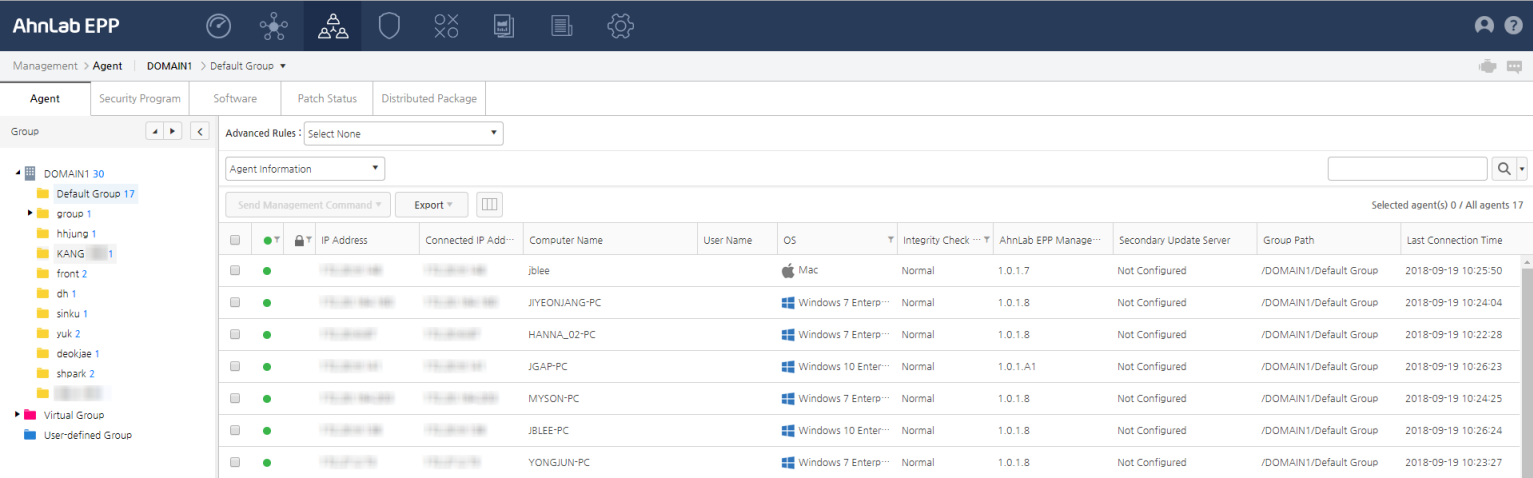
Agent provides the following information:
Agent List
Check the group information for Physical System and Virtual
System created below the domain on the left, and create a Virtual Group. View the agent information that
satisfies the Advanced Rule for the selected domain/group.
The list below Advanced Rule displays Agent Information or Policy
Distribution Information. You can deliver
Management
Commands to the selected domain/group or individual agents,
or Export selected information. Click View Agent and select an Agent
Information on the list to view the details. Also, use Search
to search for required information.
- Search: Search for agents to view the details.
Click
 on the top-left and select the search item
(IP Address, IP Address Range, MAC Address,
Computer Name, Last Logged in User, User Name, Agent ID, Department,
Email Address, Phone No. and Employee No.). The default is
Search All.
on the top-left and select the search item
(IP Address, IP Address Range, MAC Address,
Computer Name, Last Logged in User, User Name, Agent ID, Department,
Email Address, Phone No. and Employee No.). The default is
Search All.
View Agent: View the agent
information in a domain/group. The information to display can be set
from Column Settings. Select a Domain
or Group on the left and click
View Agent on the top to display all
the agents in the domain.
Column Settings: Set the
columns to display on the agent list. Click  and select the columns to display.
Domain/Group
For more information on group settings information, refer to Group
Settings. When creating a new group, set the Group
Sorting Order and Create Virtual Group.
There will be a physical system and virtual system under the domain, and
the virtual group and user-defined virtual group will be displayed.
- Physical System: The information on the agent
in the physical system. Groups can be created under a physical system.
- Default Group: The
default physical system group. The agent connected to the server falls
under this group. Default group cannot be deleted.
- Virtual System: The agent installed on a physical
system. Groups can be created under a virtual system.
- Default Group: The
default virtual system group. The virtual agent connected to the server
falls under this group. Default group cannot be deleted.
- vCenter: The agent
installed on VMware's vCenter.
- Xen: The agent installed
onCitrix Xen.
- Virtual Group: Not an actual group under a domain.
Agents are grouped temporarily for management in Policy
Pending Group, Duplicate Group, Monitoring Group, Policy Blocking
Group.
- Policy Pending Group: A virtual group of agents
grouped according to the level set in Settings > Group > Virtual Group > Policy
Pending Group.
- Duplicate Group: A virtual group of agents
registered as multiple agents from one computer grouped according
to the criteria set in Settings > Group > Virtual
Group > Duplicate Group Management.
Duplicate agents can occur when the agent's IP Address, MAC Address,
Computer Name and NT domain are changed.
- Monitoring Group: A group of agents selected
by the administrator that need to be monitored for overloading the
network.
- Policy Blocking Group: A virtual group of agents
that must not apply the policy from the server.
- User-defined Group: Create a user-defined group
by uploading the files to add to the user-defined virtual group or
entering the user-defined queries.
Select Advanced Rule to display agents that satisfy the
rule in the selected group. Click View Information
next to the Advanced Rule to view the Advanced Rule details (Rule, Response
Type and Exclusion). To hide the selected Advanced Rule details, click
Hide Information.
- Rule: The rule set in Advanced
Rule.
- Response Type: The response method for detected
agents. Send notice to agents or specify an individual response method
for each license.
- Exclusion: IP address to exclude from Advanced
Rule. If not excluded, Disabled will
be shown.
Display the agent information for the selected domain/group.
Columns displayed in Agent Information are set from Column Settings ( ). To
view the agent information:
). To
view the agent information:
- On top of the web page, click Management.
- Select the Management
> Agent tab.
- Select Advanced
Rule on the top. The information displayed will be filtered based
on the set Advanced Rule. Deselect Advanced
Rule to disable it.
- Select Agent Information
from the list. If you select a group, you can click View
Agent to view the agents in the group. Click IP
Address or Computer Name to go
to Agent Details.
- Send Management Command:
Send management commands to the selected agents. For more information
on management commands, refer to Management
Commands.
- Export: Save agent
information in csv, xlsx or pdf format.
- View Agent: View
agent information.
- Column Setup: Select
the columns to display on the agent list. The default is Connection,
Network Block, IP Address and Computer Name.
- Connection: The agent's
server connection status.
- Connected (
 ):
The server and agent are connected.
):
The server and agent are connected.
- Not Connected (
 ):
The server and agent are not connected.
):
The server and agent are not connected.
- Network Block: The
agent's network block status.
- Blocked (
 ): The agent's
network is blocked.
): The agent's
network is blocked.
- Allowed (
 ): The agent's
network is allowed.
): The agent's
network is allowed.
- IP Address: The agent's
IP address.
- Connected IP Address:
The agent's connected IP address.
- Computer Name: The
computer name in Windows system information.
- System Type: The
OS type and service pack. Ex.) Microsoft Windows 7 Enterprise K Service
Pack 1 64-bit
- User Name: The agent
user's name.
- Last Connection Time:
The agent's last connection time.
- OS: The agent's OS.
- Desktop
OS: Windows Vista, Windows 7, Windows 8 or Windows 8.1
- Server
OS: Windows Server 2003 R2, Windows Server 2008 SP2, Windows Server
2008 R2, Windows Server 2012 or Windows Server 2012 R2
- EPPM Agent Integrity
Check Result: The agent file's integrity check result.
- Not Lost: The agent
file integrity is not lost.
- Lost: The agent
file integrity is lost.
- Unknown: The agent
file integrity is unknown.
- EPPM Agent Version:
The AhnLab EPP Management Agent version.
- Secondary Update
Server: The secondary update server status.
- Group Path: The agent's
group path.
- Last Connection Time:
The agent's last connection time.
- V3
for VDI SVA: The V3 for VDI SVA's server address.
- MAC Address: The
agent's MAC address.
- Last Logged in User:
The agent's last logged in user.
- Windows Task Group:
THe Windows task group name.
- Agent ID: The agent's
ID.
- Department: The agent's
department.
- Email Address: The
agent's email address.
- Phone No.: The agent's
phone number.
- Employee No.: The
agent's employee number.
- OS Language: The
OS language. Ex.) English (US)
- Modification by Admin:
The modification made by the admin on the web console.
Display the agent issue status for the agents in the selected
domain/group. The agent that satisfies the issue conditions set in Dashboard > Summary > Issue
Condition Settings ( ) will be displayed. For
more information on issue condition settings, refer to Agent
with Issue. To view the Agent Issue Status:
) will be displayed. For
more information on issue condition settings, refer to Agent
with Issue. To view the Agent Issue Status:
- On top of the web page, click Management.
- Select the Management
> Agent tab.
- Select Advanced
Rule on the top. The information displayed will be filtered based
on the set Advanced Rule. Deselect Advanced
Rule to disable it.
- Select Agent Issue Status
from the list. If you select a group, you can click View
Agent to view the agents in the group. Click IP
Address or Computer Name to go
to Agent Details. Agent Issue
Status displays the following information along with the information
shown in Agent Information:
- Security Product
Integrity Lost: The number of agents with lost security product integrity.
- Policy Not Deployed:
The number of agents with policy not deployed.
- Security Product
Not Installed: The number of agents with security product not installed.
- Latest
Engine Not Applied: The number of agents with the latest engine not
applied. The latest engine condition is based on V3 Security Check Settings
> Last Engine Update date.
- Manual
Scan Not Executed: The number of agents with manual scan not executed.
The manual scan condition is based on V3 Security Check Settings
> Last Manual Scan date.
- Malware
Detected (Last 30 days): The number of agents with malware detected
in the last 30 days.
- License Expired:
The number of agents with license expired.
- Suspicious
Behavior Detected: The number of agents with suspicious behavior detected
in the last 30 days.
Display the V3/EDR installation
or policy application status. V3/EDR Information displays the following
information along with the information shown in Agent Information. To view the
V3/EDR Information:
 Note
Note
If the agent does
not have an EDR license, only the V3 information will be displayed.
- On top of the web page, click Management.
- Select the Management
> Agent tab.
- Select Advanced Rule
on the top. The information displayed will be filtered based on the
set Advanced Rule. Deselect Advanced Rule
to disable it.
- Select V3/EDR Information
from the list. Click IP Address or Computer Name to go to Agent Details.
- Disk
Usage: The disk usage.
- V3
Installation Status: The V3 installation status.
- EDR
Installation Status: The EDR installation status.
- V3
Policy Status: The agent's V3 policy application status - Distributed
(
 ), Distributing (
 ) or Failed
(
) or Failed
( ).
).
- EDR
Policy Status: The agent's EDR policy application status - Distributed
(), Distributing () or Failed
().
- Real-time
Scan: The V3 real-time scan status - Enabled (
 )
or Disabled (
)
or Disabled (  ).
).
- Engine
Version: The V3 engine version. Ex.) 2018.03.10.07
- Last
Engine Update Date: The last V3 engine update time. Ex.) 2018-03-12
00:00:00
- Security
Program Installation Date: The V3 installation time. Ex.) 2018-03-10
15:40:30
- Last
Scan Date: The last V3 scan time. Ex.) 2018-02-14 20:34:29
- Registration
Number: The V3 registration number.
- On top of the web page, click Management.
- Select the Management
> Agent tab.
- Select
on the top. The information displayed will be filtered based on the
set Advanced Rule. Deselect Advanced Rule
to disable it.
- Select Personal Information
Search from the list. Click IP Address
or Computer Name to go to . Personal Information Search displays the following
information along with the information shown in .
Display the following policy distribution information along with the
information shown in Agent Information. Only
the information set in Column Settings () will be
displayed.
- On top of the web page, click Management.
- Select the Management
> Agent tab.
- Select Advanced
Rule on the top. The information displayed will be filtered based
on the set Advanced Rule. Deselect Advanced
Rule to disable it.
- Select Policy Distribution
Information from the list - Not Installed
(
 ) if not installed, Distributing () if being
distributed, Failed ()
if failed to be distributed, Distributed
() if successfully distributed, and Distributed
(Individual Policy) ()
if succesfully distributed individual policy. Click IP
Address or Computer Name to go
to Agent Details.
) if not installed, Distributing () if being
distributed, Failed ()
if failed to be distributed, Distributed
() if successfully distributed, and Distributed
(Individual Policy) ()
if succesfully distributed individual policy. Click IP
Address or Computer Name to go
to Agent Details.
- EPPM Agent Policy:
The EPPM agent policy status.
- V3
Policy: The V3 policy status.
- EDR
Policy: The EDR policy status.
Reference